WordBoard 11.1: one key, every version of the message
WordBoard 11.1 is out. The headline is the new Choose variable: a key can now ask which option you want, then type the whole message with your pick in it. No more keeping five keys that differ by a single word.

What's new in 11.1
- Choose variable: add a list of options to any key and pick one each time you tap it. Free for everyone.
- Full-size key photos: tap a key's photo in the app to see the whole image, not just a thumbnail.
- Half-hour time offsets: the time offset variable now accepts values like 5.5, for India and other half-hour time zones.
- Welcome back on a new phone: setup now offers to restore your keys from iCloud and picks up WordBoard Pro on its own.
- Switch to Lifetime: subscribers can move to a one-time Lifetime purchase from the More tab.
- Clearer Full Access help and keyboard messages that no longer cover the keys inside open folders.
The Choose variable
Lots of the messages we send are almost the same every time. "Running about 10 minutes late, see you at the cafe." Next week it's 15 minutes and the office. Until now you either kept a key for every version, or tapped the key and then edited the text by hand.
Choose fixes that. Put the parts that change in a list, separated by a pipe, and WordBoard asks which one you want when you tap the key:
Running about {{ CHOOSE:"5|10|15|20" }} minutes late, so sorry! See you {{ CHOOSE:"soon|at the cafe|at the office" }}.
Tap the key and a small menu appears right next to it. Pick 10, then pick at the cafe, and WordBoard types the finished message: "Running about 10 minutes late, so sorry! See you at the cafe." Two taps, no editing.
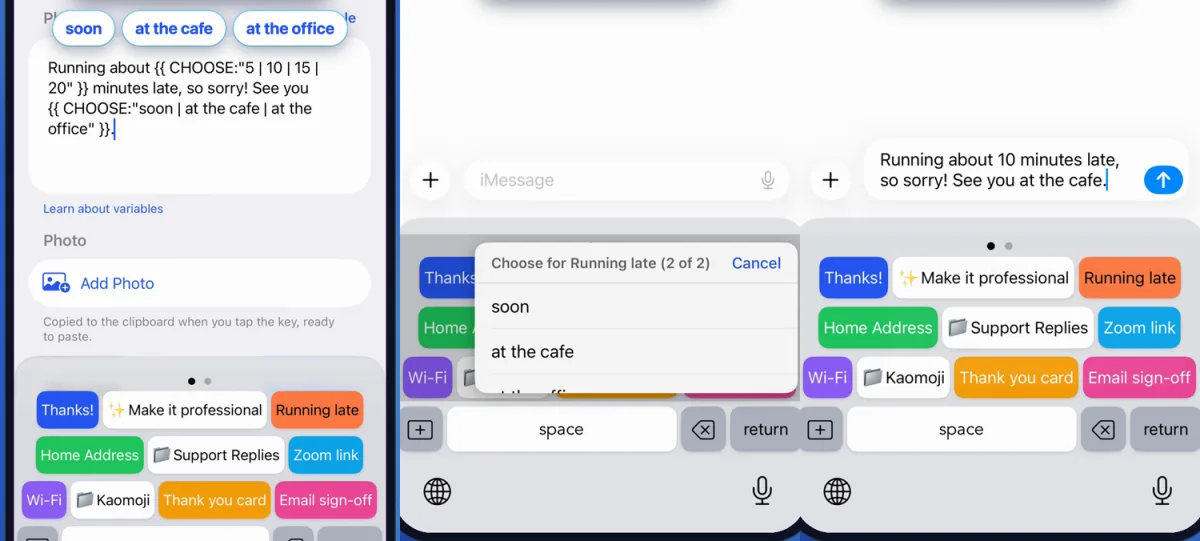 Add the lists in the key editor, pick from the menu, and the whole message is typed.
This one came straight from WordBoard users. A Discord support volunteer asked for a way to pick a topic once and have it fill a whole reply. Another asked for a dropdown, ideally with a blank option. Both work now.
How to add a Choose list
- Update WordBoard to 11.1 from the App Store.
- Open a key, or tap + to make a new one.
- In the Phrase, tap Variable, then Choose Variable. WordBoard adds an example list where your cursor is.
- Replace the example options with your own, separated by
|, and tap Save. - Switch to the WordBoard keyboard in any app and tap the key.
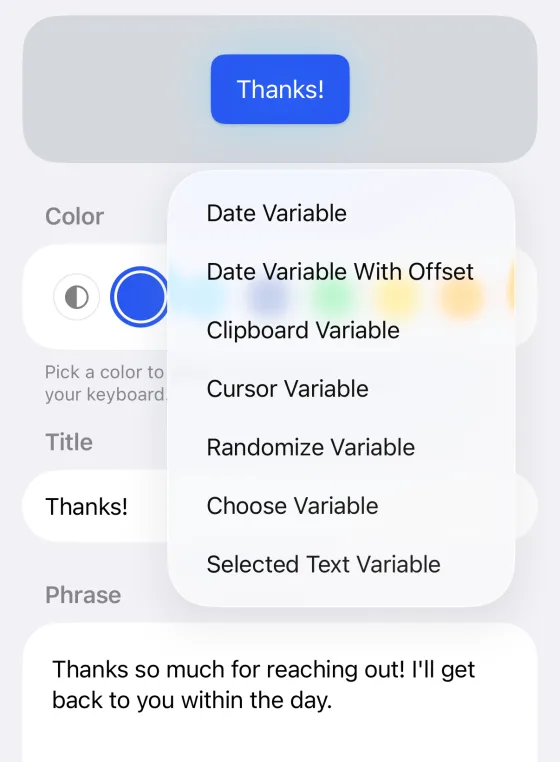 Choose Variable sits in the Variable menu, so there's no syntax to remember.
Tips for Choose
- Use several lists in one key. WordBoard asks about each one in turn, so the menu shows "1 of 2", then "2 of 2".
- Repeat a list to reuse the answer. If the same list appears twice in a key, you pick once and every copy gets it. Handy for a support reply that names the same product in two places.
- Add a blank option by leaving the last slot empty:
{{ CHOOSE:"Hi Sam|Hi team|" }}. It shows as (blank) in the menu. - Changed your mind? Tap Cancel and nothing is typed.
- Mix it with other variables. Choose works alongside
{{ date }},{{ clipboard }}, and{{ cursor }}in the same key. - Use it in AI Keys. A prompt like
Rewrite this to be {{ CHOOSE:"shorter|friendlier|more formal" }}: {{ selected }}asks which style you want before it runs. See how AI Keys work.
Choose is different from Randomize. Randomize picks for you, which is good for varying a greeting. Choose lets you pick, which is what you want when the right answer depends on the conversation. The full list is in keyboard variables explained.
See a key's photo full size
Keys can carry a photo, like a thank-you card, a map, or a QR code, that WordBoard copies so you can paste it. The key editor only showed a small cropped thumbnail, which made similar images hard to tell apart.
Now tap View Photo in the key editor and the whole image opens. Tap Done to close it. Replace Photo and Remove Photo also moved onto their own rows, so they're easier to hit.
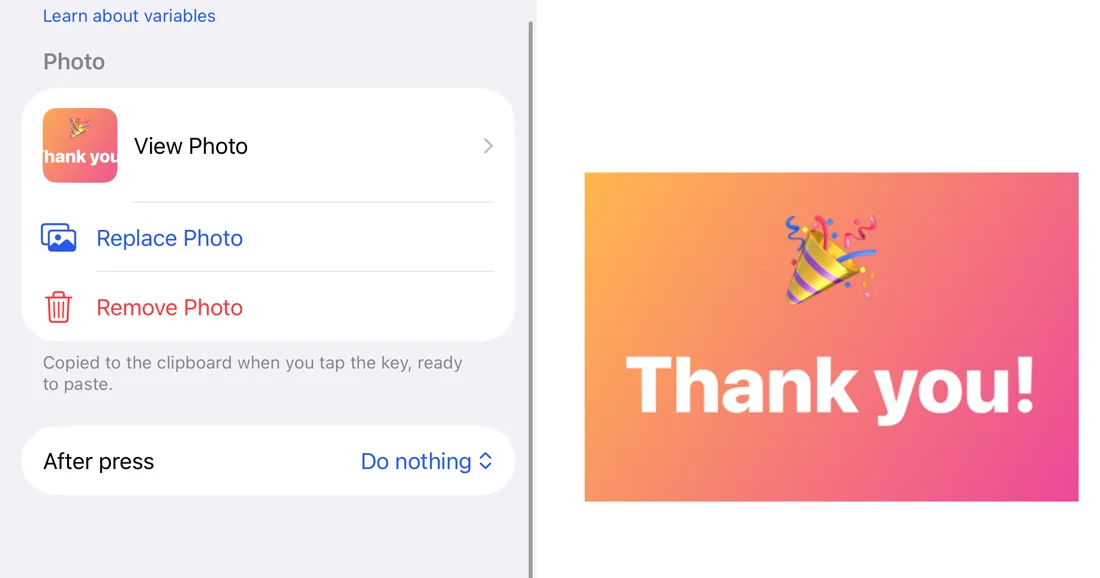 View Photo opens the whole image the key copies.
Half-hour time offsets
The time offset variable moves the date or time forward or back by a number of hours, which is useful for sending someone the time where they are. It only took whole hours, so it couldn't handle India, Newfoundland, or parts of Australia.
It now takes half hours too. {{ datehouroffset:"EEEE, MMM d, yyyy h:mm a", -10.5 }} works as written. More formats are in insert today's date on iPhone.
Smoother setup on a new phone
- Your keys come back. When you install WordBoard on a new iPhone or iPad, setup looks for an iCloud backup from your other devices and offers to restore it right after the welcome screen, instead of handing you a fresh set of example keys.
- Pro comes back too. If your Apple Account already owns WordBoard Pro, setup picks it up on its own, so there's no hunting for Restore Purchases.
- Clear Full Access steps. If the keyboard can't show your keys because Full Access is off, it now says exactly where to turn it on: Settings, Apps, WordBoard, Keyboards, Allow Full Access. WordBoard never logs or sends your keypresses. Here's what Full Access does and doesn't do.
Switch from a subscription to Lifetime
Subscribers who'd rather pay once can now tap Switch to Lifetime in the More tab. It walks you through cancelling the subscription first, so you aren't charged again, then lets you buy Lifetime. You keep Pro until the end of the period you've already paid for. See WordBoard Pro and Family Sharing for how Pro covers your other devices.
Smaller fixes
- Messages like "Image copied to clipboard" no longer cover the top row of keys inside an open folder. They show as a small pill over the folder name instead.
- Confirmations on the main keyboard clear faster, and longer messages wrap so you can read them.
FAQ
- Is the Choose variable free? Yes. Choose works in every WordBoard key, free or Pro.
- How many options can a Choose list have? As many as you like. Separate them with
|, and keep the list inside quotes. - Can one key ask more than one question? Yes. Add several Choose lists and WordBoard asks about each in turn. A list repeated in the same key is only asked once.
- Can I insert nothing for one option? Yes. Leave an empty option, such as
{{ CHOOSE:"Yes|No|" }}, and it shows as (blank) in the menu. - Does Choose work with AI Keys? Yes. WordBoard asks for your choices before it sends the prompt to Apple Intelligence.
- How do I get WordBoard 11.1? Update from the App Store. If automatic updates are on, you may already have it.