WordBoard on iPhone Duo: a snippet keyboard built for the fold
Yes, WordBoard supports iPhone Duo. Your saved replies, templates, and snippets work on both the folded outer screen and the large inner display, and the keyboard reflows the moment you fold or unfold the phone.

Quick answer
WordBoard, the iOS custom keyboard for reusable snippets and quick replies, works on iPhone Duo with no extra setup. Install it from the App Store, add it as a keyboard, and it adapts to whichever screen you are using:
- Unfolded: a roomier layout with larger key text, wider spacing, and a full toolbar, while staying at phone keyboard height so your conversation stays on screen.
- Folded: the outer screen gets the compact iPhone layout, with keys kept clear of the system controls in the corners.
- Mid-sentence: fold or unfold while typing and the keyboard rebuilds its layout on the spot.
What is iPhone Duo?
iPhone Duo is Apple's first foldable iPhone. It was announced in September 2026 and goes on sale on October 23, 2026. Opened up, it has a 7.6 inch inner display. Closed, a 5.4 inch outer display works like a regular, if narrower, iPhone.
That shape change matters for custom keyboards. A keyboard extension that only checks "is this an iPhone or an iPad" ends up wrong on one of the two screens: either cramped on the inner display, or stretched to iPad height and covering half the app. WordBoard's keyboard sizes itself to the space it actually has, not to the device model.
Unfolded: more keys, same reach
Open the Duo and WordBoard switches to its wide layout. Key labels get bigger, keys get more breathing room, and the toolbar adds a dismiss keyboard button alongside the globe, add key, space, delete, and return keys. You see more of your saved text at a glance, so less scrolling to find the reply you need.
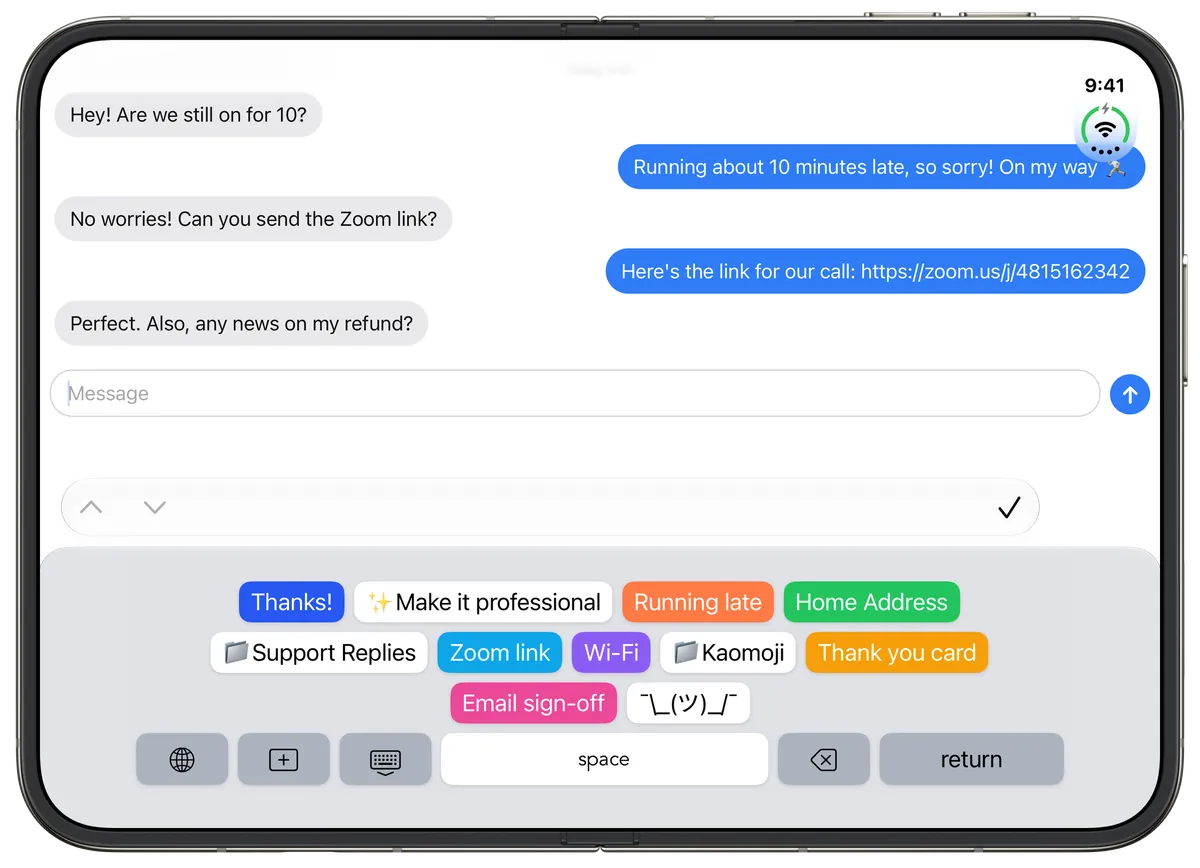 WordBoard on the unfolded iPhone Duo in Messages. Every saved reply, the AI key, and folders like Support Replies fit on one screen.
The keyboard keeps the same height as Apple's own iPhone keyboard rather than growing to iPad height. On a phone you are holding in two hands, that leaves the conversation you are replying to in view.
Hold it upright and it works the same way. Open a folder, such as a set of customer support replies, and its keys fill the keyboard so you can tap the right one and send.
![WordBoard on an upright unfolded iPhone Duo with a Support Replies folder open, showing Hi [name], Refund sent, Bug logged, and Feature request keys](/images/wordboard/blog/iphone-duo/unfolded-upright-folder.webp) A Support Replies folder open on the upright inner display.
A Support Replies folder open on the upright inner display.
Folded: one-handed replies on the outer screen
Close the Duo and WordBoard drops back to its compact layout, the same one you would see on any iPhone. This is where a tap-to-insert keyboard earns its place: on a narrower screen, typing a full address, a meeting link, or a polite "running late" message by hand is slower than usual, and one tap sends it.
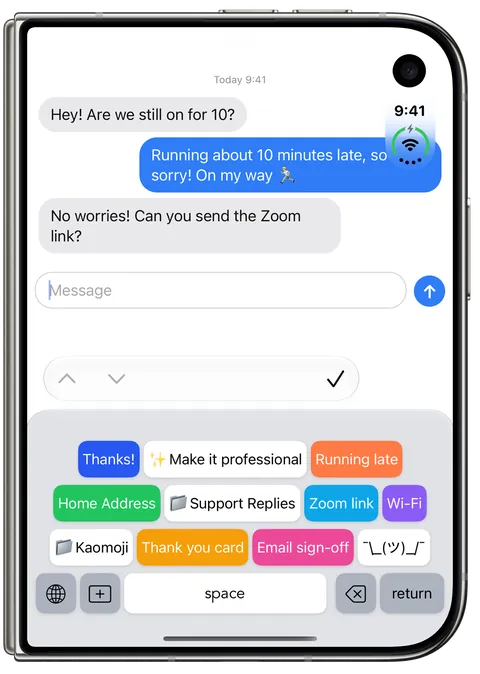 The compact layout on the folded outer screen.
The folded Duo also places the system globe and dictation buttons over the bottom corners of the keyboard. WordBoard keeps its keys clear of them, and because those system buttons cannot always be tapped in that position, it shows its own globe key so you can always switch back to your regular keyboard.
The WordBoard app on iPhone Duo
It is not just the keyboard. The WordBoard app, where you create and organize your keys, also lays itself out for each screen:
- On the unfolded display, the key editor opens as a sheet, the way it does on iPad, so your key list stays visible behind it.
- On the folded screen, the key editor respects the side margin and camera area, so fields never run underneath them.
- Setup and onboarding fit the shorter folded screen, so the Set Up Keyboard button is always reachable without scrolling past the home indicator.
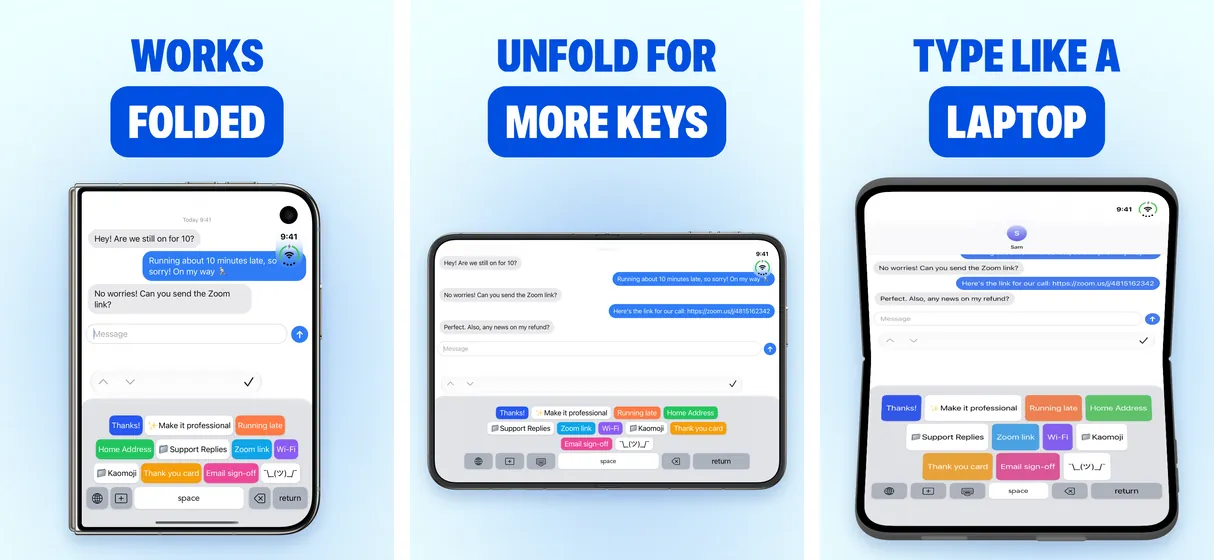 WordBoard's iPhone Duo App Store screenshots.
How to set up WordBoard on iPhone Duo
- Download WordBoard from the App Store, or update to the latest version if you already have it.
- Open WordBoard and follow the setup steps to add it in Settings, then General, then Keyboard, then Keyboards.
- Turn on Allow Full Access so the keys you create in the app can appear in the keyboard. Here is what that permission does and does not do.
- In any app, tap or hold the globe key to switch to WordBoard. See how to switch keyboards on iPhone if you need a refresher.
- Fold and unfold to try both layouts. Your keys are the same on both screens.
Moving from an older iPhone? Restore your WordBoard Pro purchase with the same Apple ID and bring your keys across with iCloud Cloud Backups. The steps are the same as moving WordBoard between iPhone and iPad.
What to save first on a foldable
The best keys are the ones you type every week. A few that suit the Duo well:
- Quick replies such as "Running about 10 minutes late" or "Thanks, got it" for one-handed replies on the folded screen. See the quick reply keyboard guide.
- Work templates like meeting links, email sign-offs, and support replies grouped into folders for the unfolded screen. See templates and customer support replies.
- Details you hate typing such as your address, Wi-Fi password, or account numbers you share often. See autofill keys.
- Dynamic keys that insert today's date, your clipboard, or a cursor position inside a template. See keyboard variables explained.
FAQ
- Does WordBoard work on iPhone Duo? Yes. WordBoard supports iPhone Duo on both the inner and outer displays, and the keyboard adapts when you fold or unfold.
- What happens if I fold or unfold while typing? The keyboard rebuilds its layout for the new screen size on the spot. Your keys and folders stay the same.
- Does the keyboard get taller on the unfolded screen? No. It gets wider, with larger key text and spacing, but keeps phone keyboard height like Apple's own keyboard, so the app you are typing into stays visible.
- Can I switch back to the Apple keyboard when the Duo is folded? Yes. WordBoard shows its own globe key on the folded screen, so switching keyboards always works even when the system globe sits over the keyboard corner.
- Do I need to buy WordBoard Pro again for iPhone Duo? No. WordBoard is free to download with 6 keys, and Pro unlocks unlimited keys. If you already have Pro, use Restore Purchases with the same Apple ID on your Duo.
- How do I move my keys from my old iPhone to iPhone Duo? Back up with Cloud Backups in the More tab on your old iPhone, then restore or merge that backup on the Duo.